Connect your sources
Connect a CSV or TSV file, a folder, gzip-compressed files or ZIP archives of them. Open the workspace with /tedata.

ToolsEnabled Data
Connect CSV or TSV files to a local workspace. Inspect, check and transform them, then build a saved table-and-chart layout without changing source files.
Data 0.8.9 · A plugin for Claude Code
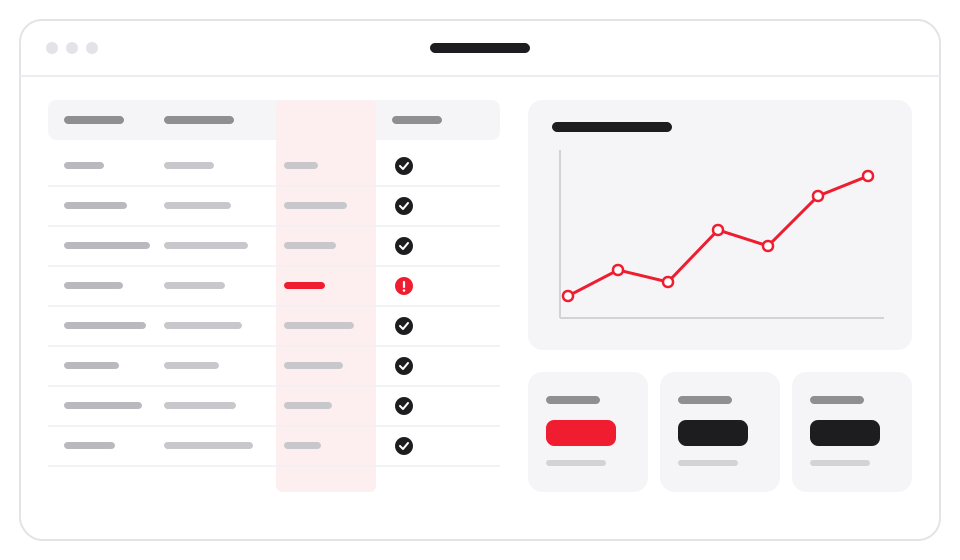
How it works
Work on your computer, with source files kept unchanged.
Connect a CSV or TSV file, a folder, gzip-compressed files or ZIP archives of them. Open the workspace with /tedata.
Interpret columns, check data and make transformed copies with ordered cleaning steps. Saved preparation records keep the checks alongside the result.
Combine summaries, tables, filters, notes and charts. Export an HTML report that opens in a browser and prints to PDF, with charts and table data beside it.
What it does

Keep connected data and reference documents with your project. Re-read connected data with /tedata update while retaining the saved layout.

Keep, remove or flag rows; transform columns; drop missing values; deduplicate (keeping the original row order); select columns; and look up values from another connected file. Cleaned copies live separately from the sources.

Build plots over grouped summaries, including time buckets, numeric bins and measures such as counts, means and quantiles. Layouts keep summaries, tables, filters and notes together.

Apply the same interpretation and checks to a group of files. Export the prepared files with an index of hashes, row counts and requirement results, plus a provenance record.

Export the saved view as report.html, chart files with their specifications and data, and a CSV table.

Records stay in your project's .tedata folder. Derived copies go there by default, or to a real folder you choose with derivedDirectory. The Python environment stays in Data's own data folder. Data collects no telemetry and sends nothing to ToolsEnabled. Tool results go to your host, whose provider applies its own conversation policy.
The fine print, plainly
The interactive panel appears where your host supports MCP App panels. Otherwise, Data works through text. It is installed in Claude Code's desktop Code tab or CLI. It has not been tested in cloud task modes, and its tools do not load in web chat.
One-time setup runs only after you agree, and downloads DuckDB from PyPI or your configured package index. If uv is installed, setup uses it, and uv may also download Python. Setup runs from Data's own data folder.
Collection runs keep going while the session stays open, and interrupted runs can resume. Inspect the checks and exported results before sharing them.
The public archive includes a prebuilt server and panel, a file verifier and tests for the shipped watcher and MCP server. The internal build source and original source suites are not included. This release has not been tested in a web browser, on native Windows or on macOS.
Install
Version 0.8.9 was published on 14 October 2026. Read its release notes and check the requirements first.
1Add the marketplace and install
Run these commands from a terminal, then open Claude Code in your project folder.
claude plugin marketplace add ToolsEnabled/toolsenabled-data-claude-plugin
claude plugin install toolsenabled-data@toolsenabled-data2Set up once, then connect
Run /toolsenabled-data:setup once per computer. Connect a file or folder, then run /tedata to open the workspace. The 0.8.9 README lists the commands, and its Try it section has three prompts to run on a small sample file.
3Verify a downloaded release
For a local copy of the published files, download the 0.8.9 archive and its SHA-256 sidecar into one folder. Continue only when the checksum reports OK. These commands inspect the archive; the plugin installation uses the commands in step 1. Two tests need DuckDB: set TEDATA_PYTHON to a Python with DuckDB 1.5.6 to run them; otherwise they are skipped.
sha256sum -c toolsenabled-data-0.8.9.tar.gz.sha256
tar -xzf toolsenabled-data-0.8.9.tar.gz
cd toolsenabled-data
node tools/verify-release.mjs
node --test test/*.test.mjs
Expected archive SHA-256: 439488e29762220ebcdf461633f3c144c92ae7f265fba1a9941b9a67d5bbef46
4Update an existing installation
claude plugin marketplace update toolsenabled-data
claude plugin update toolsenabled-data@toolsenabled-data
Restart Claude Code after updating.
Inspect the repository, download the archive and ask for help when you need it.
Current release: Data 0.8.9 · Release notes · Security policy · Privacy
Questions: support@toolsenabled.ai